

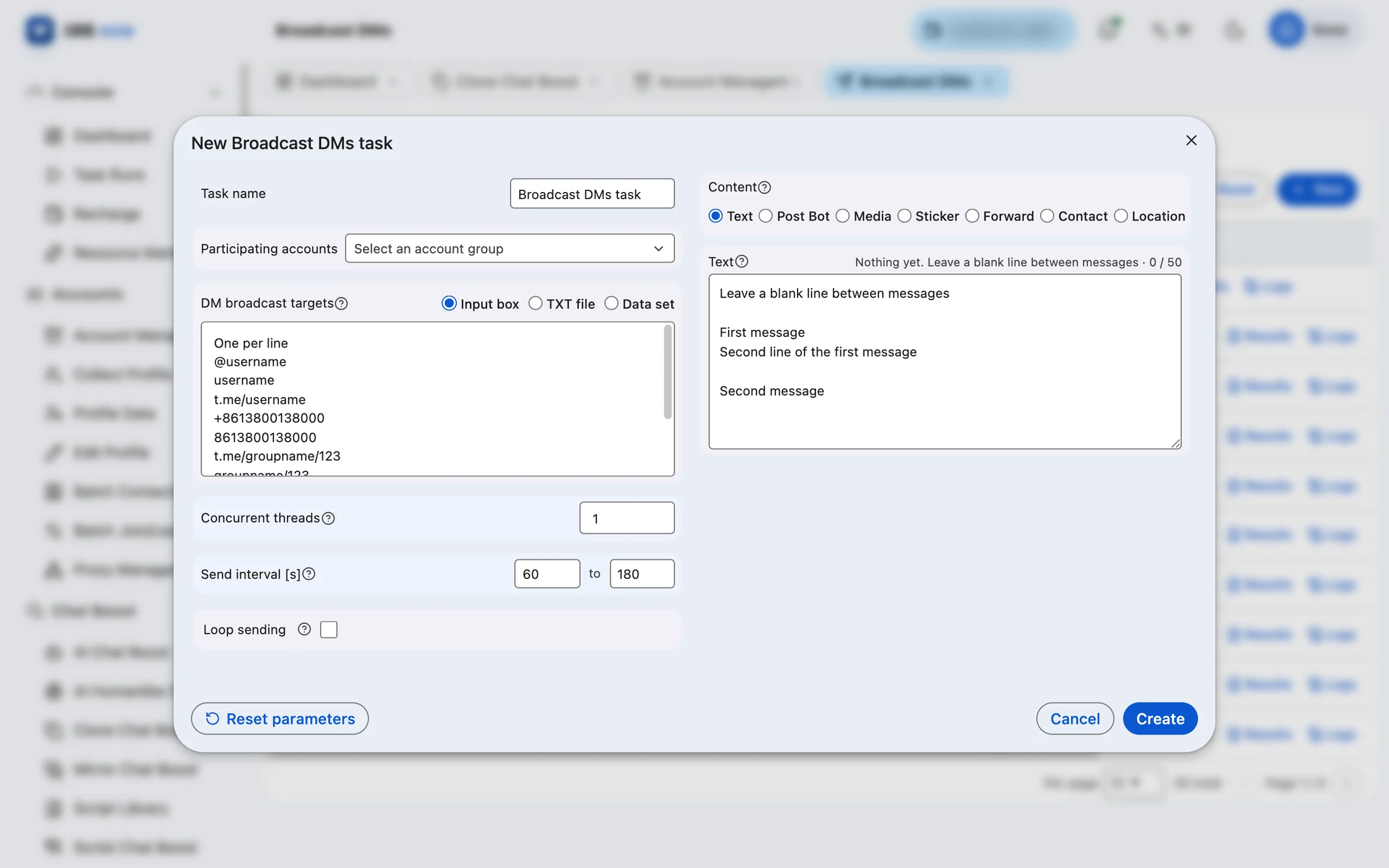
Broadcast DMs sends direct messages to a list of target users. Open Broadcast → Broadcast DMs from the left menu of the workspace and click Add to open the task settings.
Choose the sending accounts
Pick which accounts send by account group. We recommend a dedicated group for broadcast accounts, which makes scale easier to control and results easier to compare.
Add targets
Targets can come from three sources: one per line in the input box, an uploaded TXT file, or an existing data collection in the data system. The input box accepts @username, username, t.me/username and phone numbers with or without +.
Set the sending pace
- Concurrent threads: how many sending lanes run at the same time.
- Send interval: seconds to wait between two sends, entered as a range; the system picks a random value within it (60 to 180 seconds by default).
- Loop sending: when on, after one round of targets the task waits for the next-round interval and sends to the same list again until stopped manually; when off, it ends after one round.
Prepare the content
There are seven content types: text, posting bot, media, sticker, forward, contact and location. You can prepare several items of each; one is picked at random on every send, and the same account never sends the same item twice in a row. Separate text items with a blank line, up to 50 items.
Run and review
After the task is created you can stop, edit or restart it from the list and view its results and logs; tasks of every type are also collected on the Task Runs page. DM volume and success rate feed into Today’s Output in Statistics Detail.